
Hướng dẫn xuất hoá đơn
Hướng dẫn cách xuất hóa đơn trên GenInvoice, từ kiểm tra thông tin đến hoàn tất việc phát hành hóa đơn.
Step 1: Export the report from the marketplace
Note: Do not modify the report after downloading it from the marketplace. GenInvoice automatically reads the data based on the marketplace's default file structure.
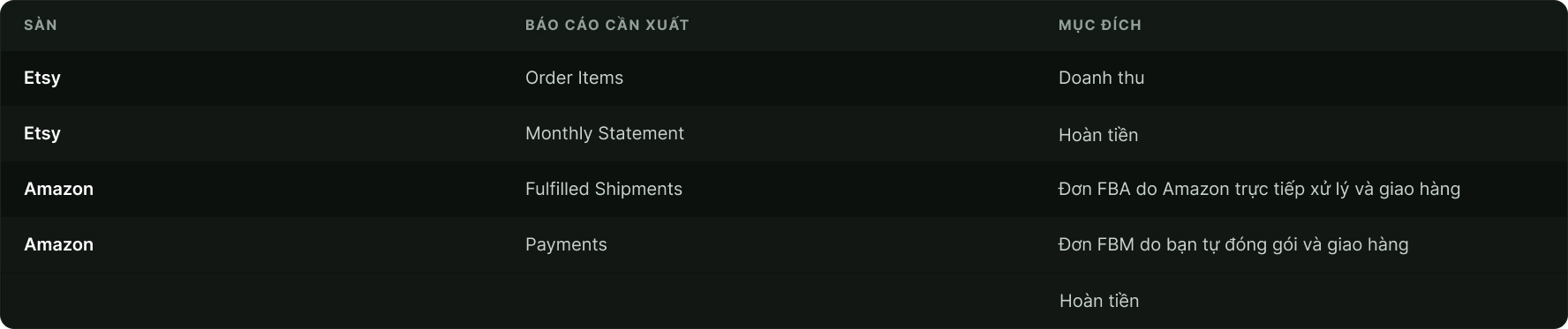
File upload requirements:
- Number of files: Upload only 1 file per import.
- Format: Select CSV (preferred if supported by the marketplace) or .xlsx.
- File size & rows: Maximum 10 MB and 10,000 rows per file.
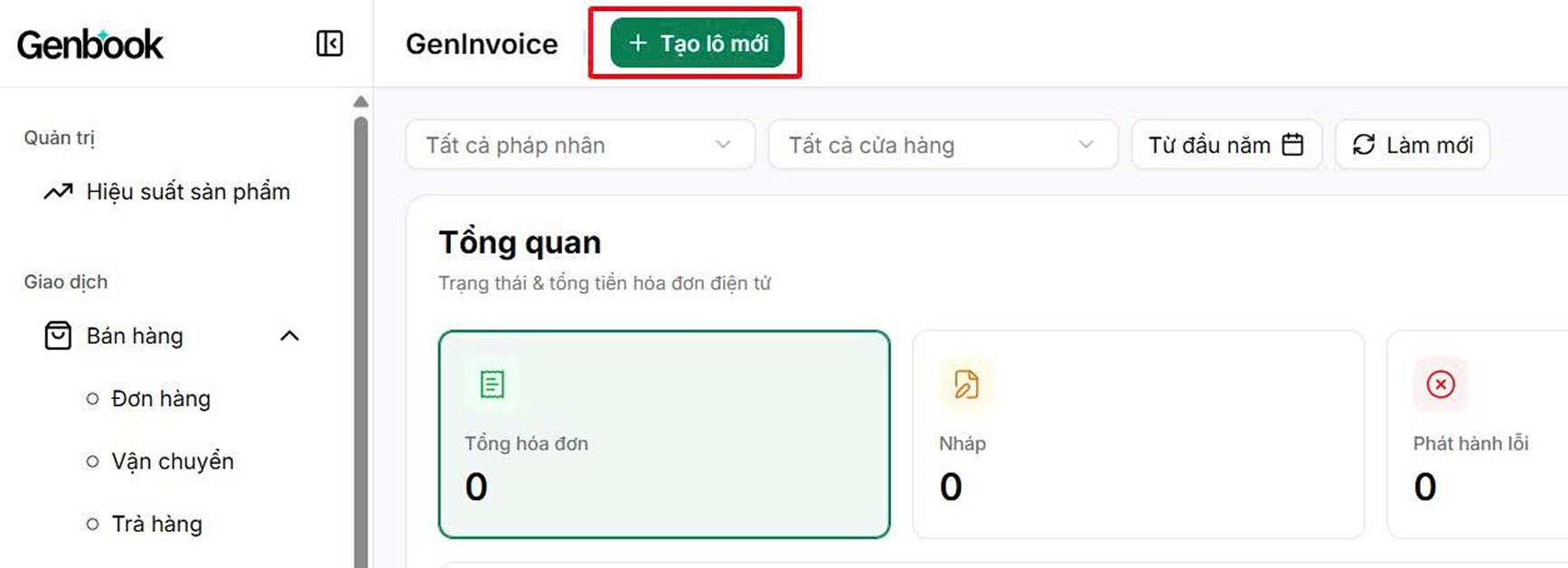
Step 2: Create a new invoice batch
- Click “Create New Batch”.
Step 3: Upload the marketplace report to GenInvoice
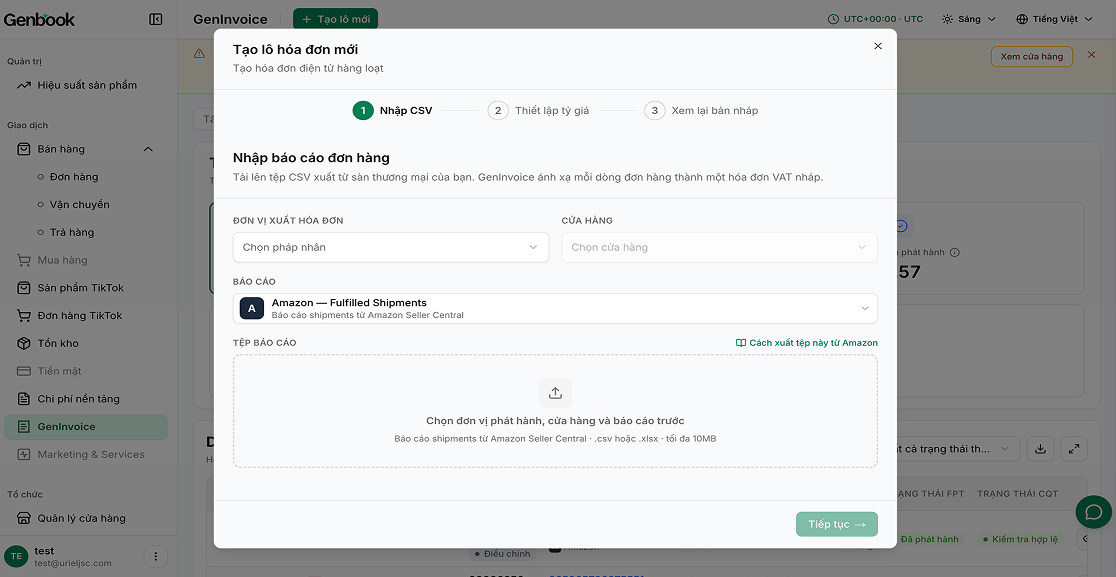
To upload the marketplace report, follow these steps:
- Select the legal entity.
- Select the shop.
- Select the report.
- Select the report file.
- Click “Continue”.
Step 4: Set the exchange rate
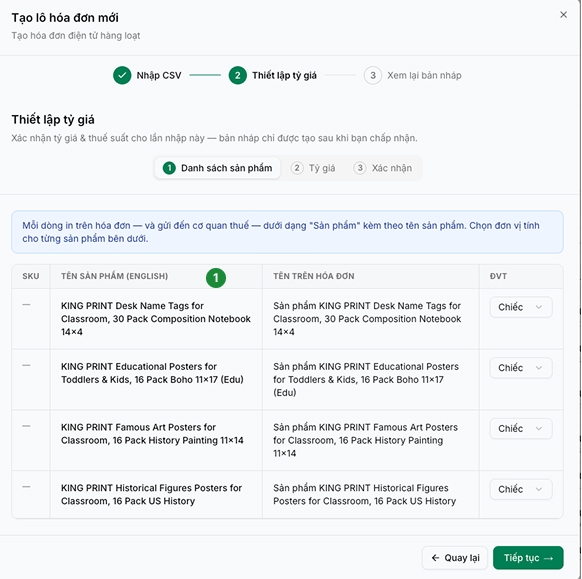
- Review the product list
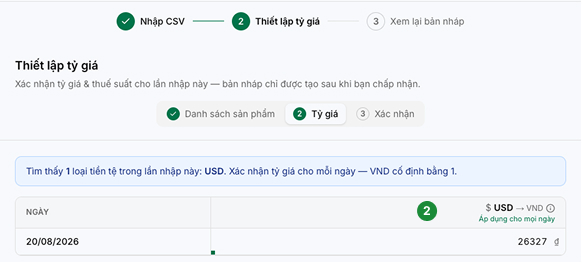
2. Set the exchange rate for the invoice issuance date
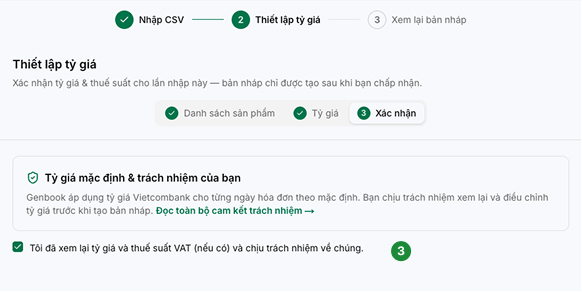
3. Confirm the invoice information
4. Click “Continue”
Step 5: Review the Draft and Issue the Invoice
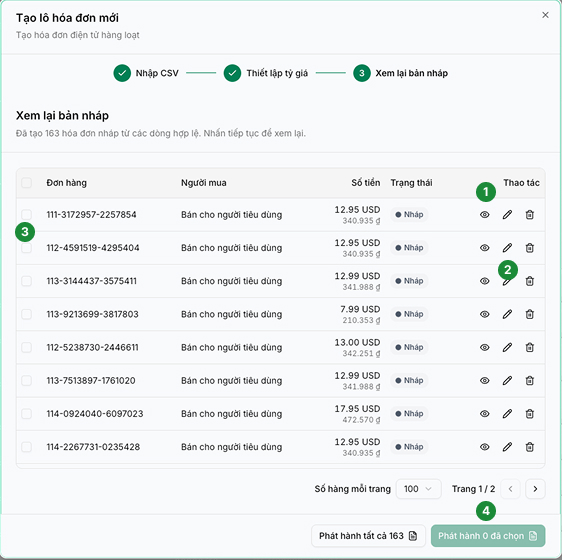
- Click the eye icon to preview the draft invoice.
- Click the pencil icon to edit the invoice information.
- Select the invoices you want to issue.
- Issue the selected invoices.
Note on invoice issuance dates:
FPT requires that an invoice issued later must have an issuance date that is the same as or later than the most recent invoice issued under the same invoice series.
- Example: If an invoice was issued on the 24th, you cannot issue another invoice with a date earlier than the 24th.
- If no invoice has been issued for the 25th yet, you can still issue an invoice dated the 24th (or an earlier date).
To avoid this issue, upload all files from all shops so that all draft invoices can be created and reviewed before issuing them.
GenInvoice automatically alerts you and groups older-dated invoices into a batch only if those invoices have already been created as drafts. Upload all relevant files to ensure that the system can identify all invoices before issuance.
Possible results after issuing an invoice
Invoices are processed sequentially through FPT. The detailed processing result is updated for each invoice.

An invoice cannot be issued if the legal entity has not been connected or the invoice quota has been exhausted.
Invoice dashboard
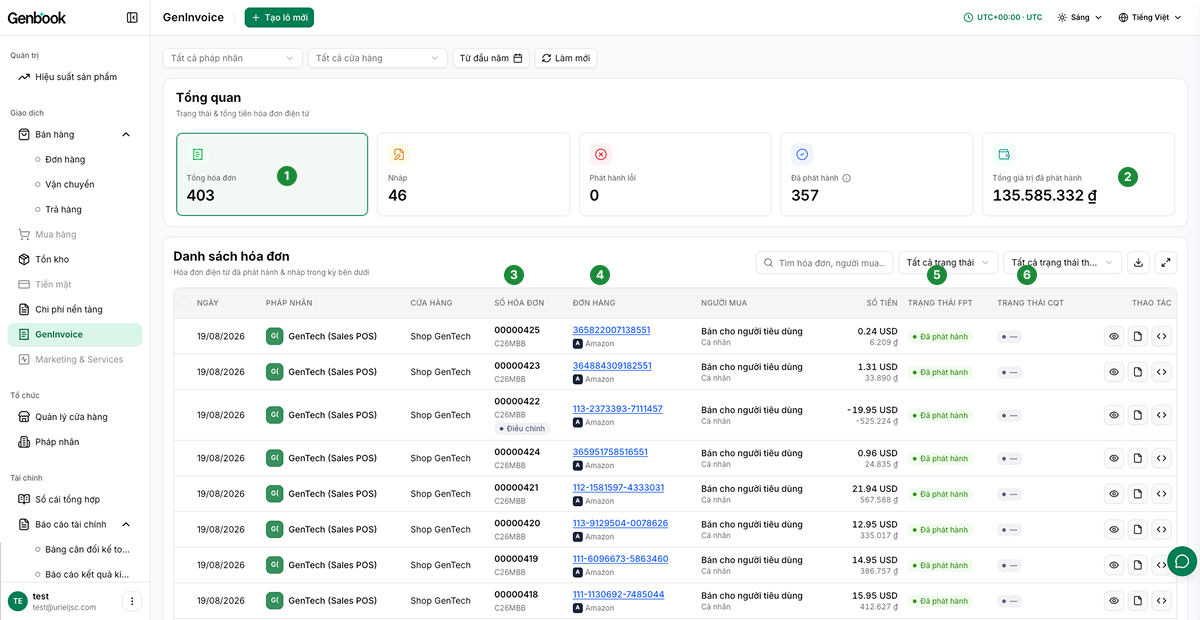
The Invoice Dashboard displays:
- The list of invoices corresponding to the current date filter.
- The total value of issued invoices in VND.
- The number of official invoices.
- The official order series.
- Invoices that have been received and processed or rejected by FPT.
- The invoice processing status from the Tax Authority.
After an invoice is issued, it will be displayed as follows:
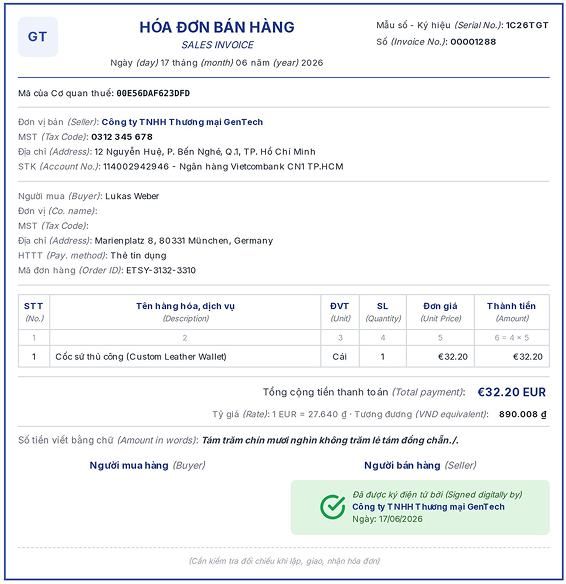
Invoice statuses on GenInvoice
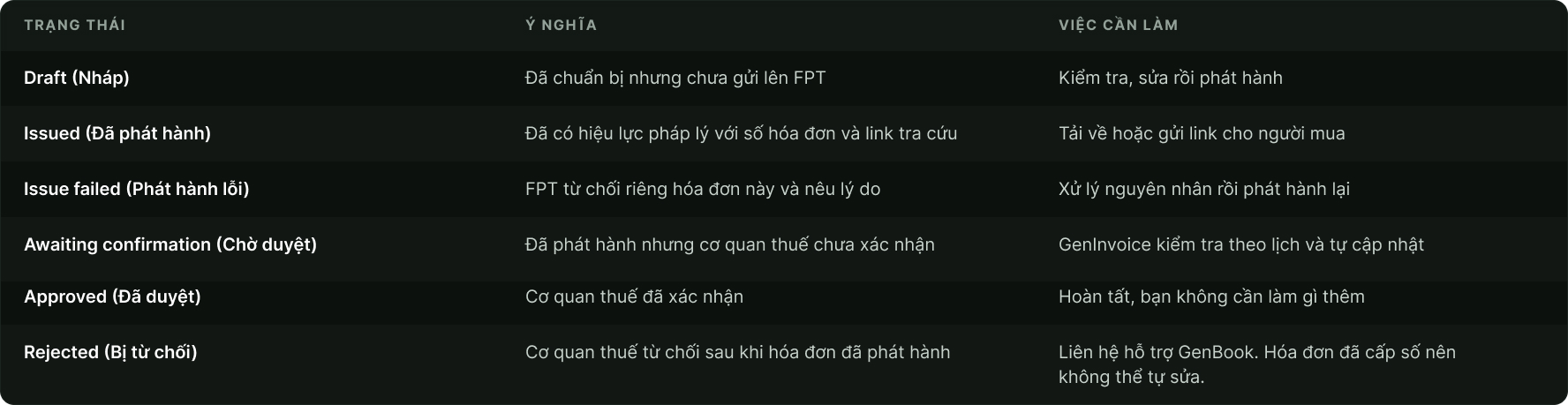
Download & Share: Invoices pending approval can still be downloaded and shared normally.
Change of Legal Entity: If a shop has been transferred to a different owner, the invoice details will display both the legal entity that issued the invoice and the current legal entity.