
Initial Setup for GenInvoice
How to Set Up GenInvoice
Step 1: Create a Legal Entity
The legal entity is the entity that issues invoices. Create one legal entity for each invoicing entity.
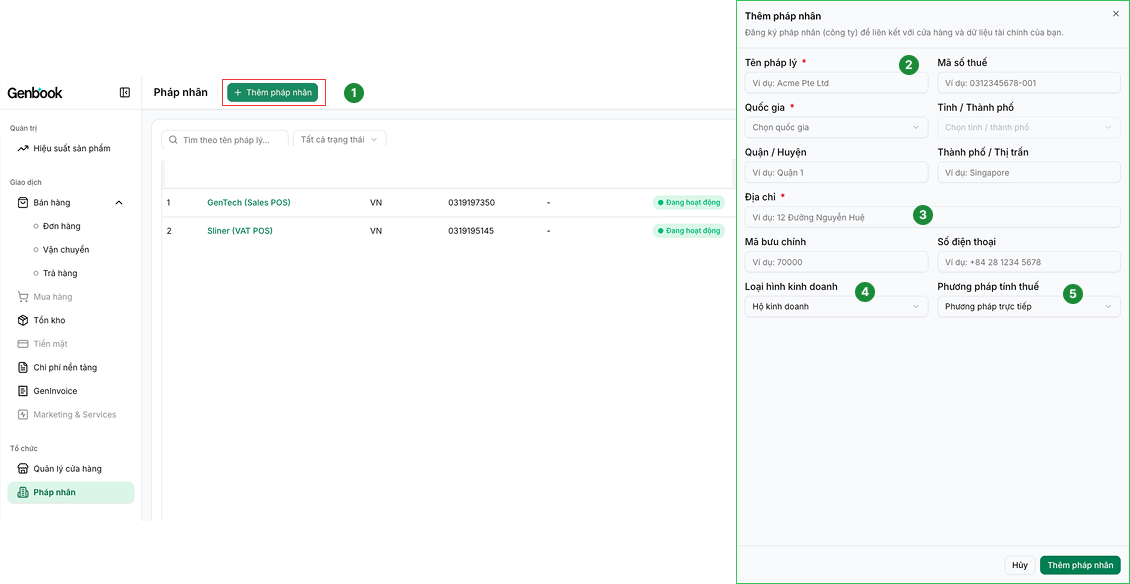
Follow the steps below to create a legal entity:
- Click “Add Legal Entity.”
- Enter the legal entity’s name and tax identification number.
- Enter the legal entity’s address.
- Select the entity type: Household Business, Individual, or Enterprise.
- Select the tax calculation method, which determines the type of FPT invoice to be registered. For household businesses and individuals, Direct Tax is recommended.
*Note: The information above is required to register an FPT account.
Step 2: Create a Store
Each invoice is issued separately for each store, and each store is associated with only one legal entity.
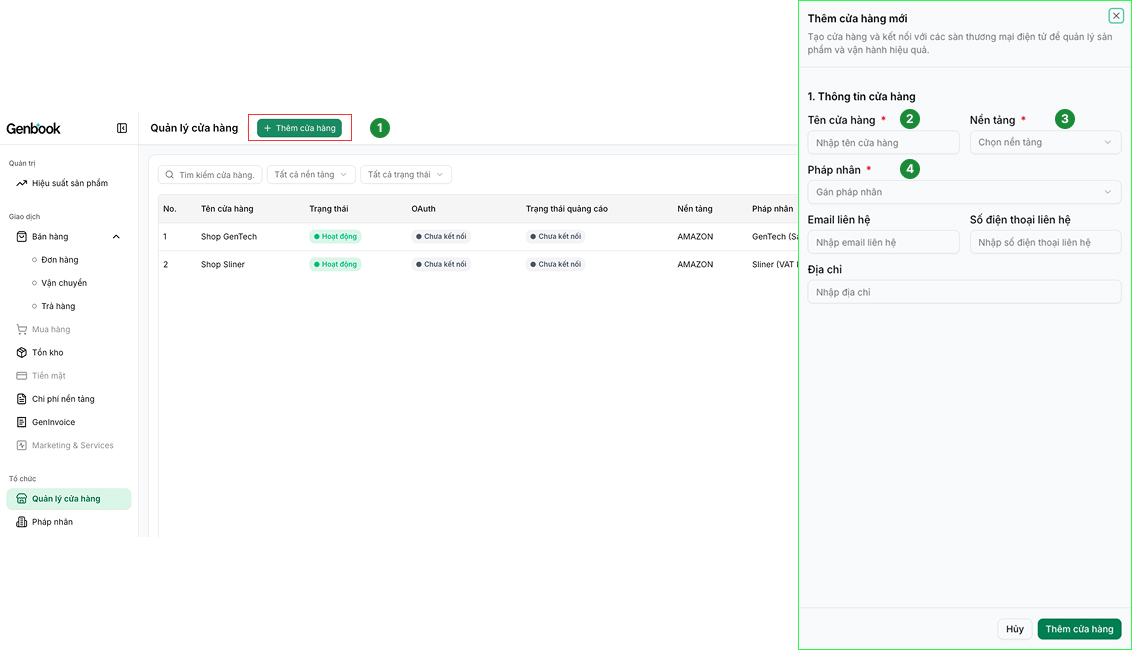
To create a store, follow the steps below:
- Click “Add Store.”
- Enter your store name.
- Select the platform where your store operates.
- Select the legal entity that will issue invoices for the store.
Step 3: Connect the Legal Entity to an FPT Account
Go back to the “Legal Entity” page and click the pencil icon to edit the information.
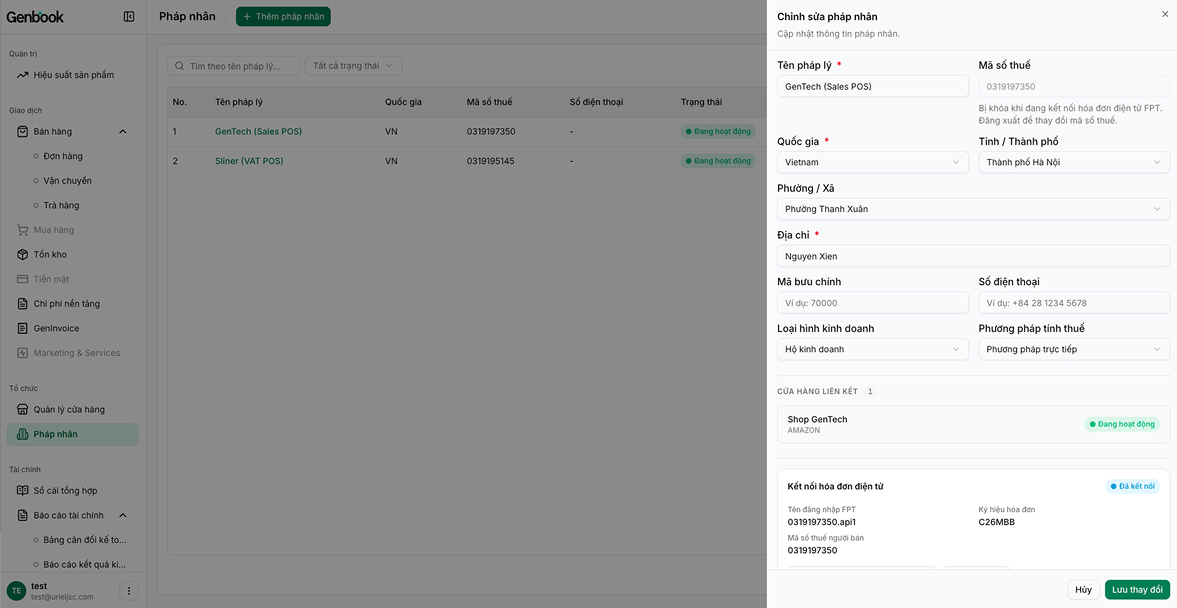
- Click “Log In.” If you do not have an FPT account yet, complete the FPT registration form displayed.
- Check your email for the login credentials sent by FPT. These credentials will be used to connect your account.
*Note
While waiting for FPT to process your registration, your legal entity will remain in “Not Set Up” status until you enter the login credentials.
- Register only once
Genbook does not store the information you enter in the FPT form. The registration process is handled directly between you and FPT. After submitting the form, please wait for FPT’s response and do not submit another request to avoid duplicate registrations.
- Information sent by FPT
FPT will notify you once the tax authority has accepted your e-invoice registration. Your FPT Portal account and API account information will be sent to your email.
Please use the API account to connect the legal entity in Step 4.
GenInvoice currently only supports issuing sales invoices from point-of-sale (POS) systems. Please select the correct invoice type and symbol. Other invoice types will be supported in future updates.
Step 4: Connect the Account
The newly registered account is not yet connected to the legal entity. Enter the API login credentials provided by FPT to complete the connection.
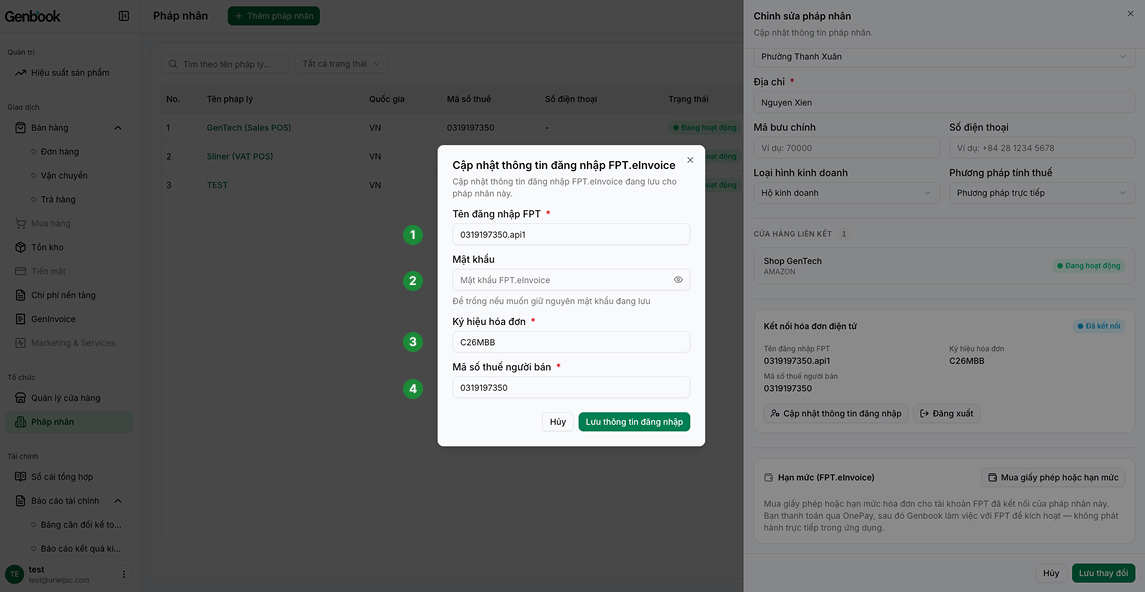
Enter the information provided by FPT via email, including:
- Username
- Password
- FPT invoice symbol registered for sales invoices issued from a point-of-sale (POS) system
- Tax identification number
Step 5: Confirm the Legal Entity Is Connected
Invoices can only be issued from a connected legal entity.
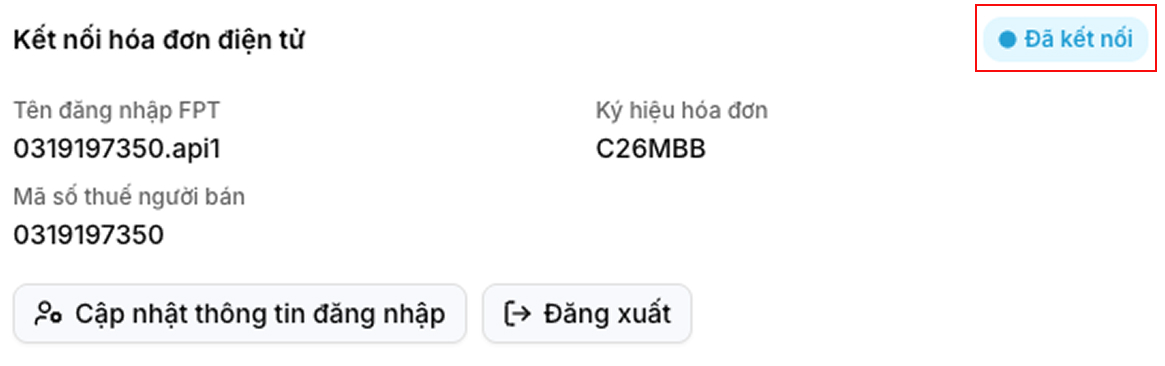
- Check the connection status and account information.
- Update the invoice symbol, username, or password here without logging out.
- Only log out if you want to disconnect the account or connect the legal entity to a different FPT account.